Customize your Return Address
Learn to Customizing your return address on our outbound shipping labels to ensure that returned items are sent to correct address you want
Introduction
Customizing your return labels in ShipBots can be done in a few simple steps to ensure your returned items are sent to the correct address you prefer (by default, the return address is our warehouse).
Accessing Warehouse Settings
To begin, under the
My Account tab, click on Wareouses from the dropdown menu to access the Warehouse section.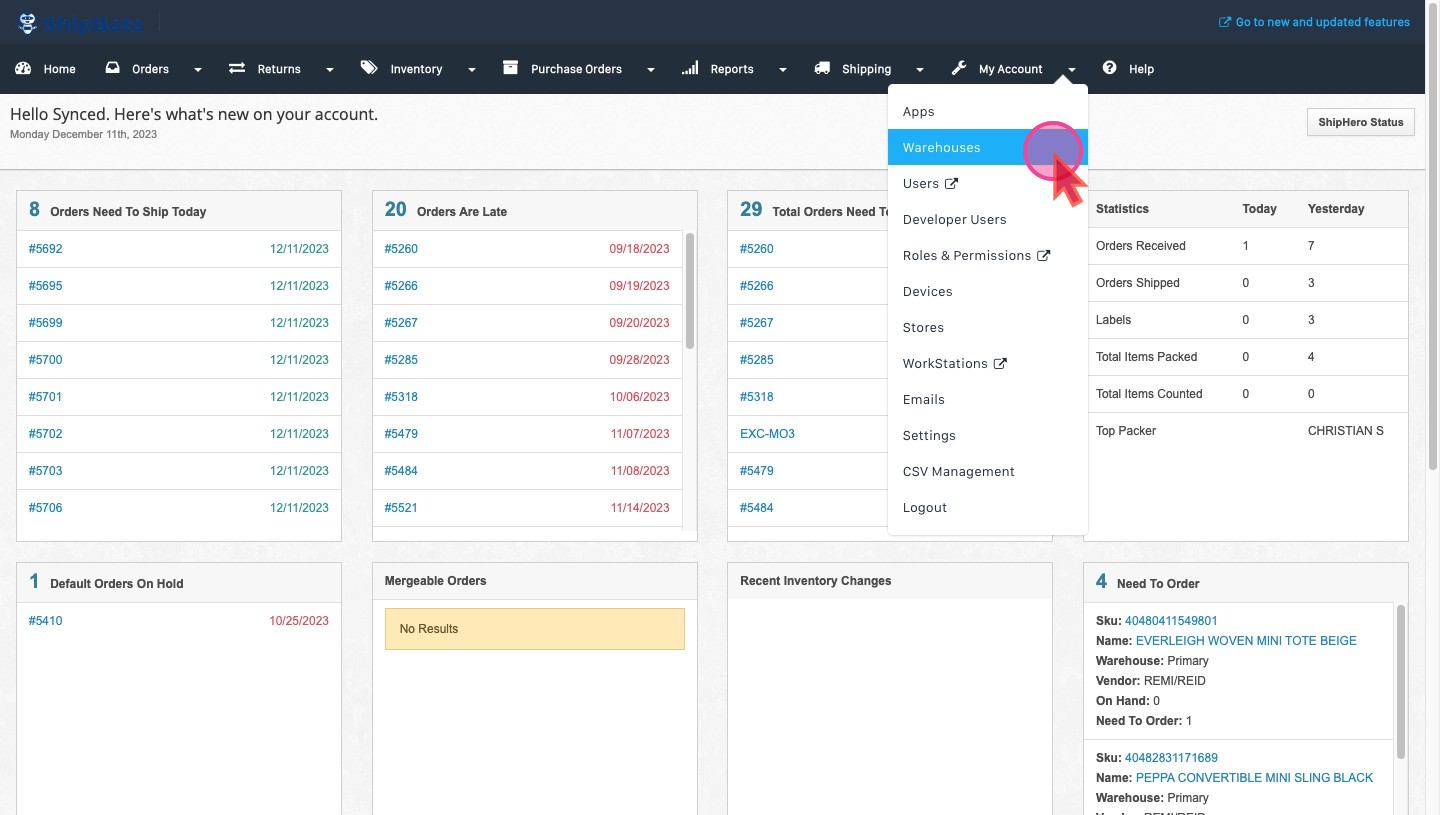
Navigating to Return Address Settings
Once in the
Warehouses section, Click on Settings to access customization options for your return labels.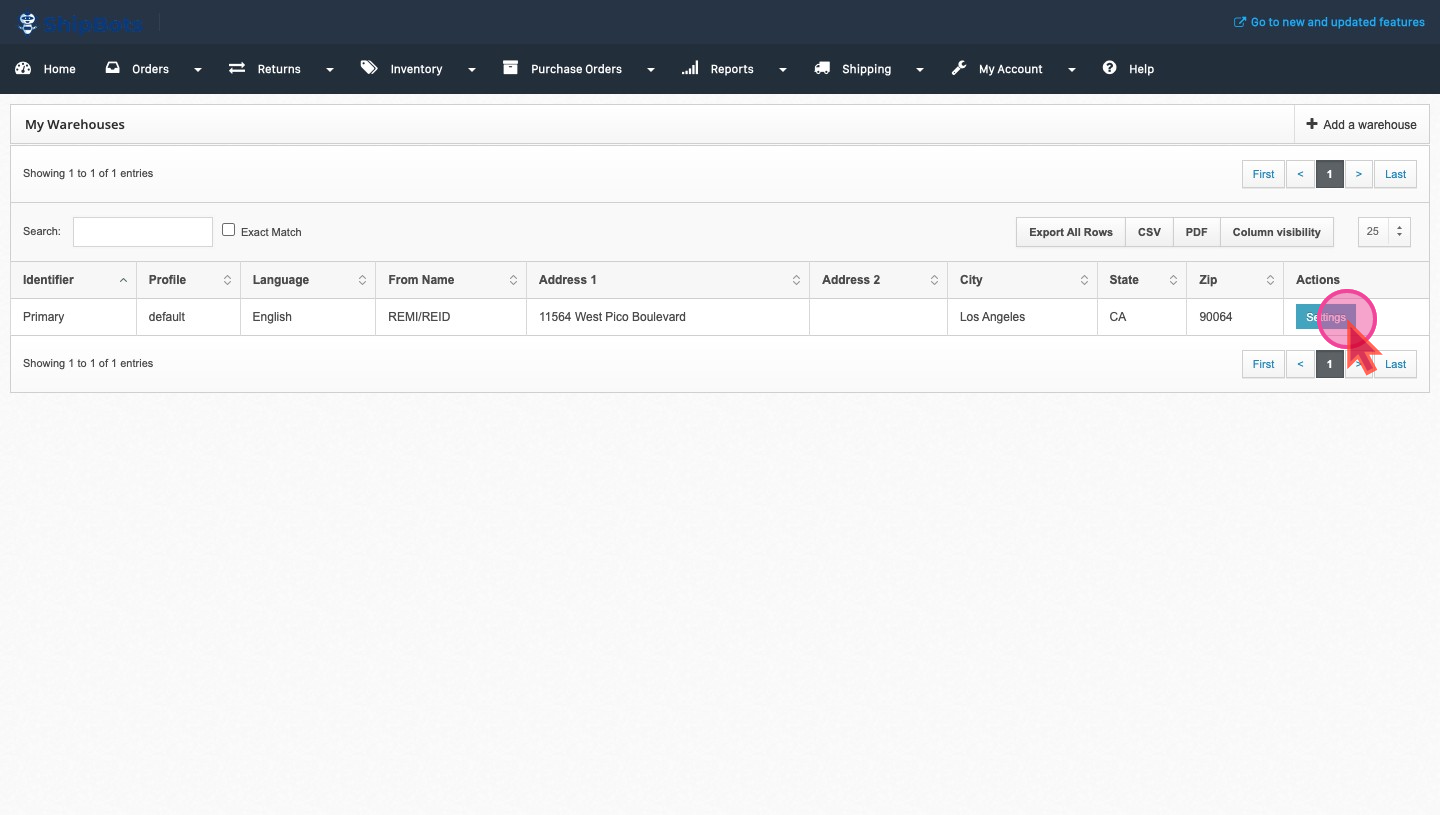
Editing Return Address Information
On the settings page, update the information in both the
Invoice Address and Label Address sections to specify where you want your returns to be sent.
Adding a Logo to Your Invoices
If you want to include a logo on your invoices, scroll down to the
Invoice Logo section where you can upload an image that will be featured on your return labels.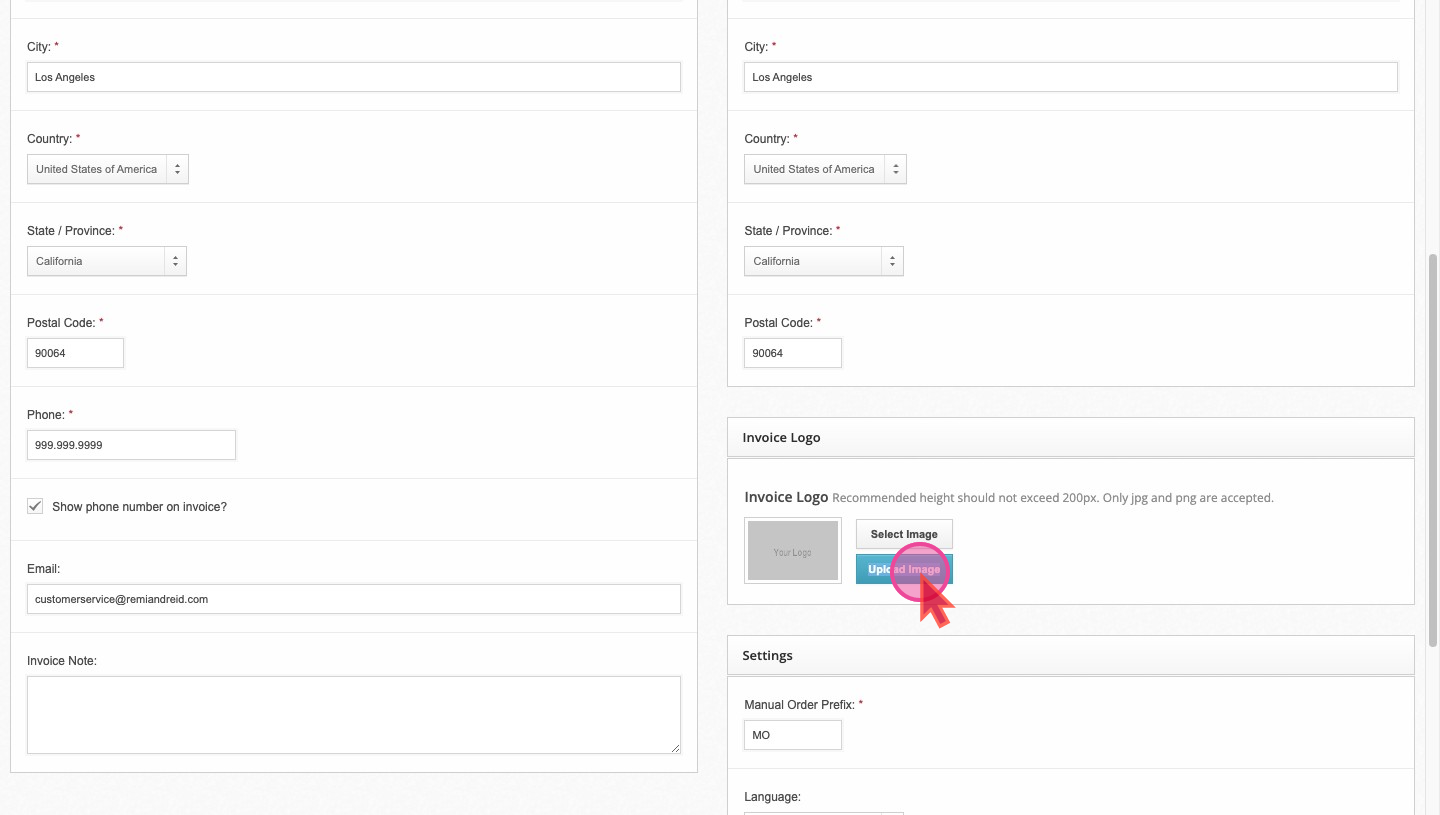
Saving Your Customizations
After you've made your edits, click on
Save Warehouse at the bottom left of the page to apply your new return label settings.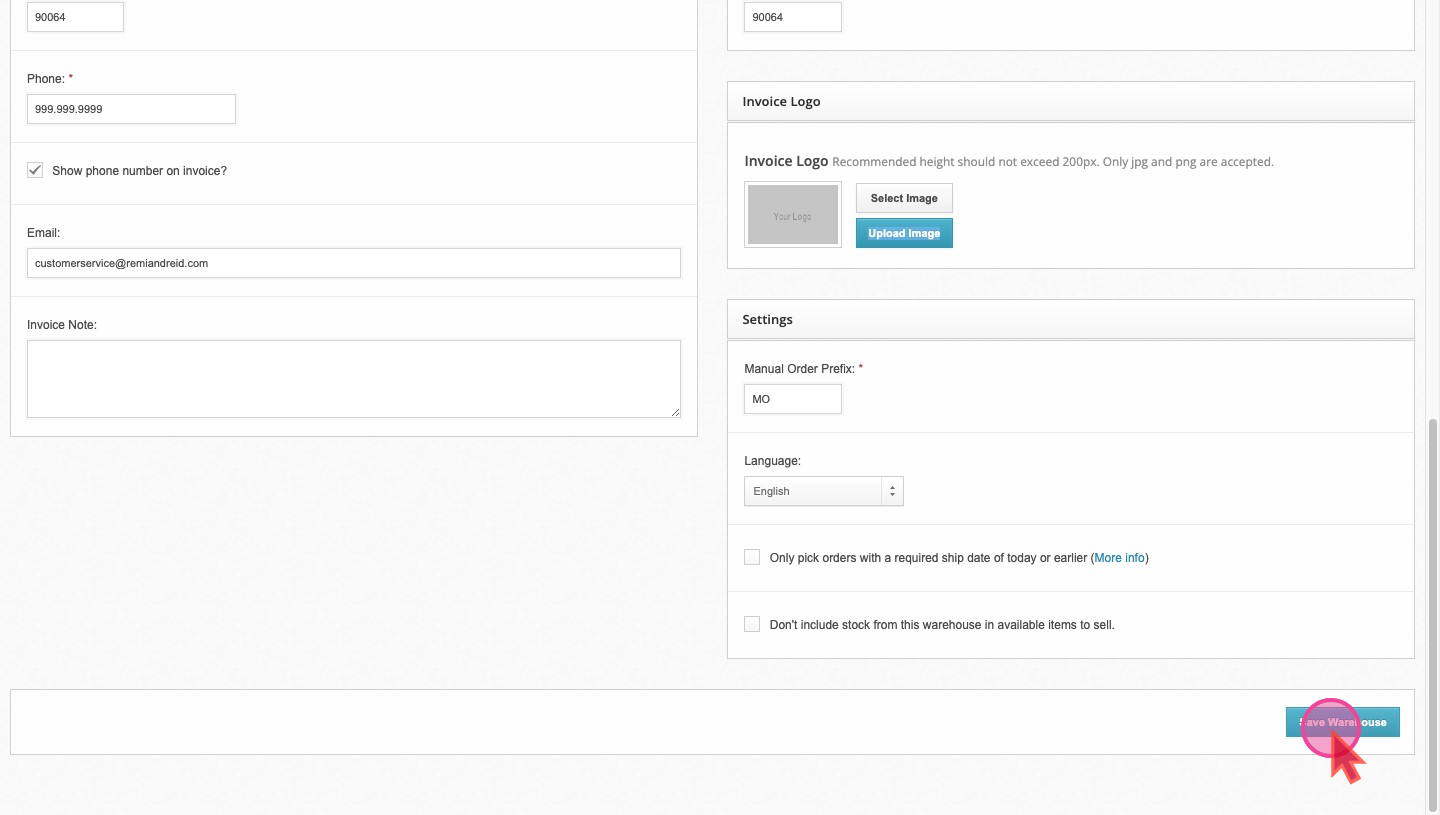
Did this answer your question?